C++ JSON

This guide will provide step-by-step instructions on how to add JSON to the Visual Studio C++ project.
In computing, serialization is the process of translating a data structure or object state into a format that can be stored or transmitted and reconstructed later. The reverse process is called deserialization. The game engine will use JSON to deserialize file(s) that define game objects in the game level.
About JSON
JSON (JavaScript Object Notation) is a lightweight data-interchange format. It is easy for humans to read and write. It is easy for machines to parse and generate. JSON is a text format that is completely language independent but uses conventions that are familiar to programmers of the C-family of languages, including C, C++, C#, Java, JavaScript, Perl, Python, and many others. These properties make JSON an ideal data-interchange language.
Download JSON
- Download the code for RapidJSON https://github.com/Tencent/rapidjson/
- Click on the <> Code button and select Download ZIP.
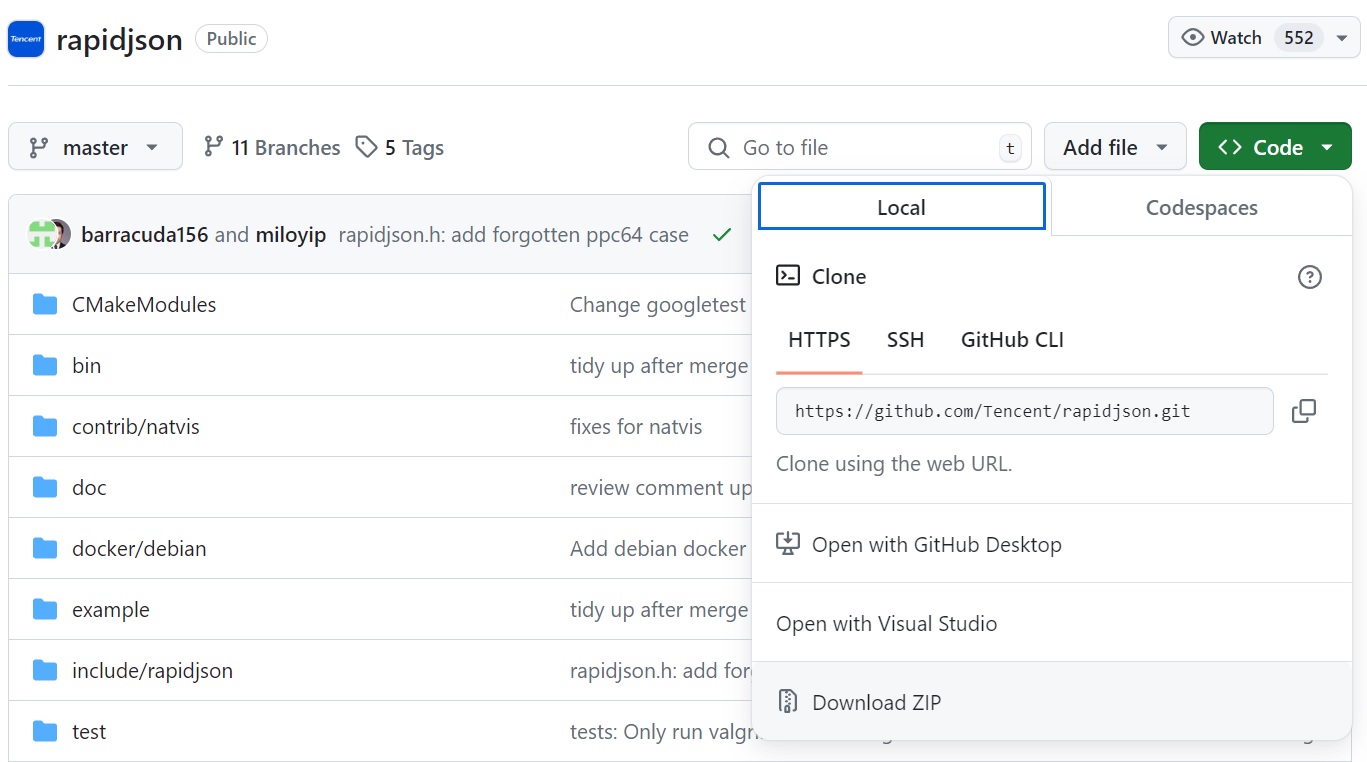
- Copy the .zip into the ThirdParty folder.
- Extract the
rapidjson-master.zipfile.- Make sure the contents of the rapidjson files are under this directory and not under another subdirectory.
- Rename the extracted folder “rapidjson”.
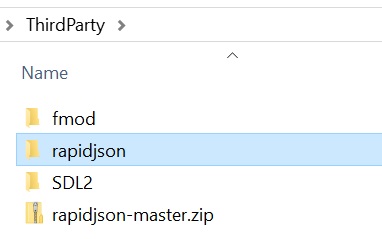
- Delete the
rapidjson-master.zipfile, it is not needed.
Add JSON to the Solution Project(s)
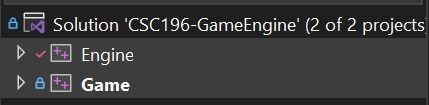
If the Solution contains multiple Projects, the following steps will need to be done for each project. This is because each project needs the path to the JSON includes.
In the Project Properties, make sure that the Configuration is set to All Configurations and Platform is set to All Platforms.

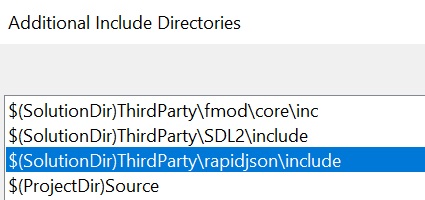
- Add the directory of the rapidjson include folder to the Additional Include Directories.
- Additional Include Directories is located in C/C++>General.
- Add
$(SolutionDir)ThirdParty\rapidjson\include
1
$(SolutionDir)ThirdParty\rapidjson\include
Create JSON File
- In the Build/Assets folder create a folder called
dataand a text file calleddata.json.
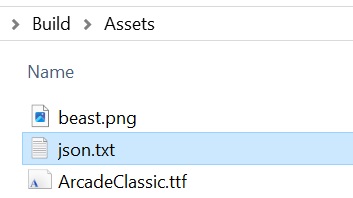
- Open the file and add JSON data. Use your own values for name and age.
1 2 3 4 5 6 7 8
{ "name": "Raymond", "age": 44, "speed": 18.5, "isAwake": true, "position": [10, 20], "color": [1, 0, 0] } - The data is in a key, value format .
- “key”: value
- Using the key, the value can be retrieved.
It is common to have the JSON file not correctly formatted. Use this page to verify your JSON file: https://jsonformatter.curiousconcept.com/
- Copy the contents of the JSON file and paste it into the page.
- Click Process.
- It will notify of any existing errors.
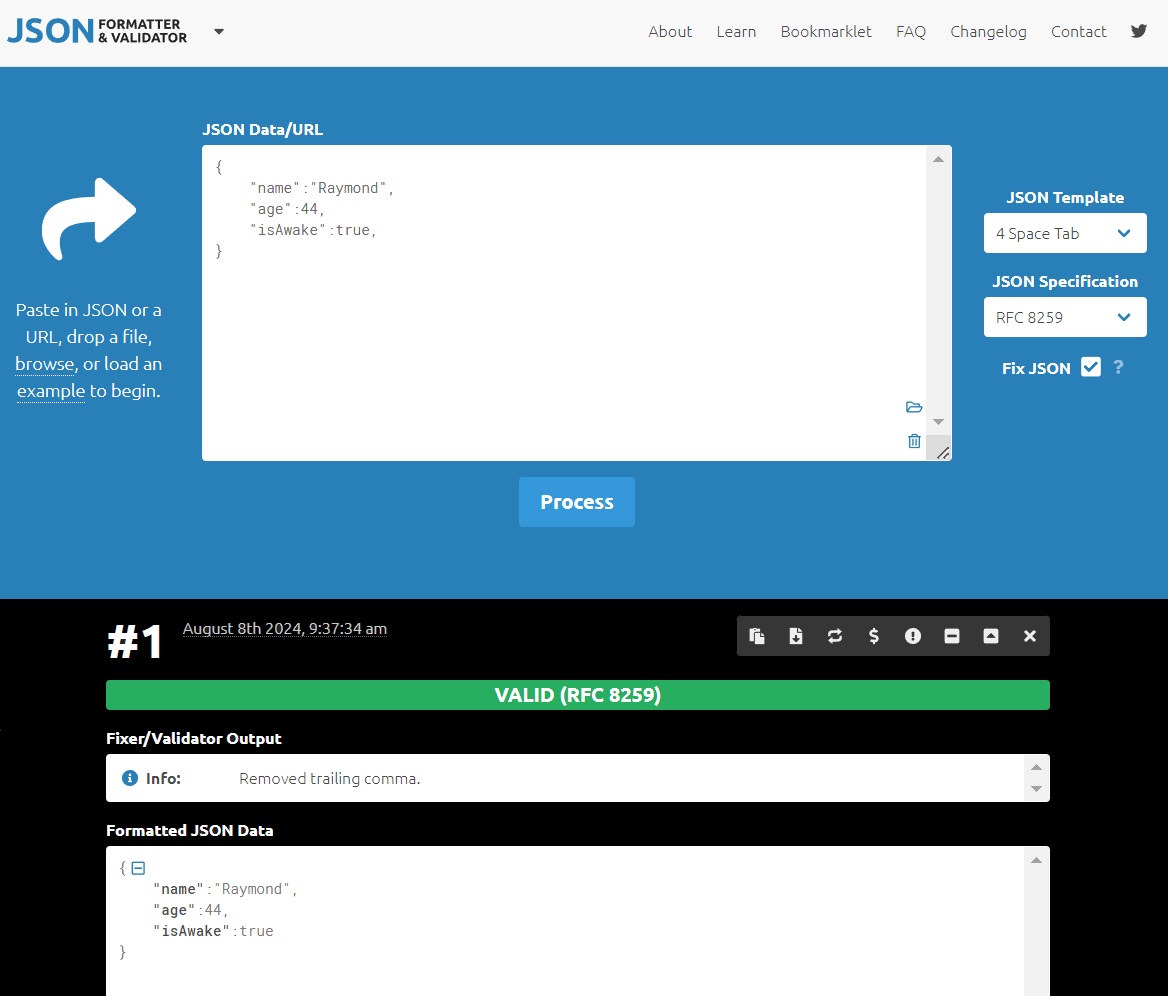
Many errors come from JSON files that are not properly formatted. Use the JSON formatter to validate the JSON files. The JSON formatter allows you to copy from the processed JSON text. These can be pasted back into the JSON file.
Create JSON Functions
- Create a Json.h and Json.cpp in the Engine project.
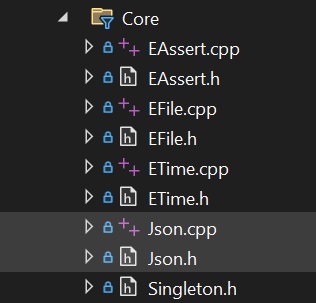
Create JSON header (.h)
- In the Json.h file, add code for the function declarations to load and read the JSON file.
- The functions are placed in a namespace to keep the function names in their own space <your namespace::json>
1
2
3
4
5
6
7
8
9
10
11
#pragma once
#include <rapidjson/document.h>
#include <string>

namespace nu::json
{
	bool Load(const std::string& filename, rapidjson::Document& document);

	// read json data
	bool Read(const rapidjson::Value& value, const std::string& name, int& data);
}
Create JSON source file (.cpp)
- In the Json.cpp file, add code for the function definitions to load and read the JSON file.
1
2
3
4
5
6
7
8
9
10
11
12
13
14
15
16
17
18
19
20
21
22
23
24
25
26
27
28
29
30
31
32
33
34
35
36
37
38
39
40
41
42
43
44
45
46
47
48
49
50
51
52
53
54
55
56
57
58
59
60
61
#include "pch.h"
#include "Json.h"
#include "File.h"

#include <rapidjson/istreamwrapper.h>
#include <rapidjson/error/en.h>
#include <iostream>

namespace nu::json
{
    bool Load(const std::string& filename, rapidjson::Document& document)
    {
        // read the file into a string
        std::string buffer;
        if (!ReadTextFile(filename, buffer))
        {
            std::cerr << "Could not read file:" << filename << std::endl;
            return false;
        }

        // convert the string into a json stream
        std::stringstream stream(buffer);
        rapidjson::IStreamWrapper istream(stream);

        // set the json document from the stream
        document.ParseStream(istream);

        // check if the parse was successful
        if (document.HasParseError())
        {
            std::cerr << "Could not parse JSON: " << filename << std::endl;
            std::cerr << "Error: " << rapidjson::GetParseError_En(document.GetParseError()) << std::endl;

            return false;
        }

        // check that the root value is an object, not an array/string/number/etc.
        if (!document.IsObject())
        {
            std::cerr << "JSON root is not an object: " << filename << std::endl;
            return false;
        }

        return true;
    }

    bool Read(const rapidjson::Value& value, const std::string& name, int& data)
    {
        // check if the value has the "<name>" and the correct data type
        if (!value.HasMember(name.c_str()) || !value[name.c_str()].IsInt())
        {
            std::cerr << "Could not read JSON value (int):" << name << std::endl;
            return false;
        }

        // get the data
        data = value[name.c_str()].GetInt();

        return true;
    }
}
- Include the Json.h in the Engine.h.
1
#include Json.h"
Load and Read JSON in Main()
- In the Main.cpp main() function, add the code to read the JSON data.
- Place this inside main() and towards the top of the function, after setting the Assets directory.
1
2
3
4
5
6
7
8
9
10
11
12
13
14
15
16
17
18
19
20
21
22
23
24
25
26
27
28
29
30
31
// load the json data from a file
std::string buffer;
if (ReadTextFile("data/data.json", buffer))
{
    // show the contents of the json file (debug)
    std::cout << buffer << std::endl;

    // create json document from the json file contents
    rapidjson::Document document;
    if (json::Load("data/data.json", document))
    {
        // read the age data (int) from the json
        int age;
        json::Read(document, "age", age);
        // show the age data
        std::cout << age << std::endl;
    }
}

+ After running the program, the console will display the contents of the **JSON** file and the **age** data.
<div align="left">
<img src="json-output.jpg" alt="Output" width="80%"/>
</div>

### Add Addition JSON Functions ###
_Add additional functions to load different data types from the **JSON** file._

+ In the Json.h file, _add_ the following functions.
  + Add new functions to load **float**, **bool**, **std::string**, **vec2**, and **vec3**
  + Include **Math/Vector2.h** and **Math/Vector3.h**
#include “Vector2.h” #include “Vector3.h”
bool Read(const rapidjson::Value& value, const std::string& name, float& data); bool Read(const rapidjson::Value& value, const std::string& name, bool& data); bool Read(const rapidjson::Value& value, const std::string& name, std::string& data); bool Read(const rapidjson::Value& value, const std::string& name, Vector2& data); bool Read(const rapidjson::Value& value, const std::string& name, Vector3& data);
1
2
3
4
5
6

+ Create the definitions for the functions in Json.cpp.
+ The code to get the data for each data type is similar to the integer Read().
  + Change the functions for the data type in Is**DataType**() and Get**DataType**() function, here is an example for the bool data
  + Do this for the **bool**, **float**, and **std::string** Read() functions
bool Read(const rapidjson::Value& value, const std::string& name, bool& data) { // check if the value has the “
1
2
3
4
// get the data
data = value[name.c_str()].GetBool();

return true; } ```
- The Vector2 and Vector3 have multiple values that need to be read.
- JSON treats these as arrays and need to be read in as an array
- Here is an example of reading in the Vector2.
1
2
3
4
5
6
7
8
9
10
11
12
13
14
15
16
17
18
19
20
21
22
23
24
25
26
bool Read(const rapidjson::Value& value, const std::string& name, Vector2& data)
{
    // check if the value has the "<name>" and is an array with 2 elements
    if (!value.HasMember(name.c_str()) || !value[name.c_str()].IsArray() || value[name.c_str()].Size() != 2)
    {
        std::cerr << "Could not read JSON value (Vector2):" << name << std::endl;
        return false;
    }

    // get json array object
    auto& array = value[name.c_str()];
    // get array values, iterate through each element
    for (rapidjson::SizeType i = 0; i < array.Size(); i++)
    {
        if (!array[i].IsNumber())
        {
            std::cerr << "Could not read JSON value (Vector2):" << name << std::endl;
            return false;
        }

        // get the data
        data[i] = array[i].GetFloat();
    }

    return true;
}
- Using the Vector2 as an example, complete the Vecto3 Read().
- The Vector3 has 3 elements.
- Make sure when checking the array size to check for 3 elements.
- The Vector3 has 3 elements.
Read Data Types in Main()
- Update the code in main() to read and display all the data types
1
2
3
4
5
6
7
8
9
10
11
12
13
14
15
16
17
18
19
20
// read/show the data from the json file
std::string name;
int age;
float speed;
bool isAwake;
<your namespace>::Vector2 position;
<your namespace>::Vector3 color;

// read the json data
<your namespace>::json::Read(document, "name", name);
<your namespace>::json::Read(document, "age", age);
<your namespace>::json::Read(document, "speed", speed);
<your namespace>::json::Read(document, "isAwake", isAwake);
<your namespace>::json::Read(document, "position", position);
<your namespace>::json::Read(document, "color", color);

// show the data
std::cout << name << " " << age << " " << speed << " " << isAwake << std::endl;
std::cout << position.x << " " << position.y << std::endl;
std::cout << color.r << " " << color.g << " " << color.b << " " << std::endl;
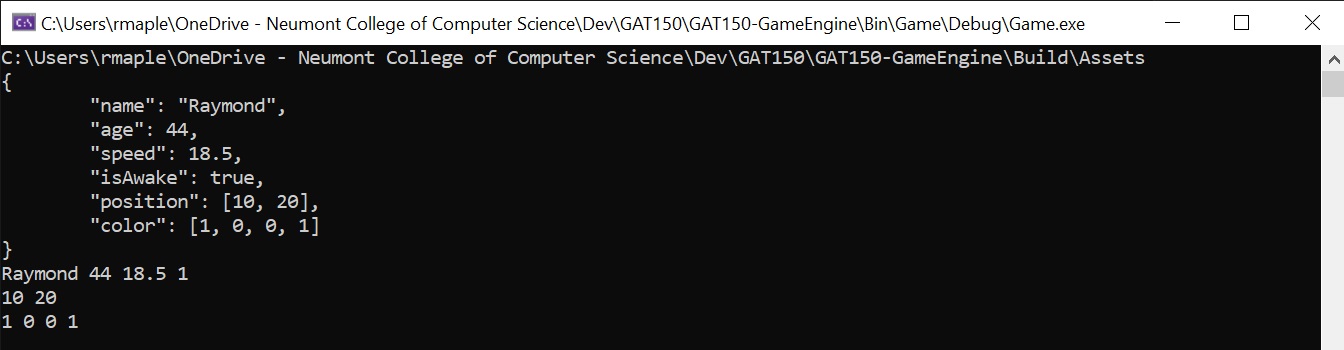
- The output should look like the image below
Create JSON Read Macro
To make reading data in easier, a macro can be created to simplify the code. A macro in C++ is a preprocessor directive that defines a code fragment or value to be substituted and expanded before the actual compilation process begins.
- In the Json.h file, add the following macro.
- The # in a macro converts the data parameter to a string by putting quotes around the name.
- Place the macro after the #include lines.
1
#define JSON_READ(value, data) <your namespace>::json::Read(value, #data, data)
- In main() change the Read() function to the macro.
- For this macro to work, the key in the JSON file must match the variable name in the code.
- Place this after the #include lines.
Before
1
<your namespace>::json::Read(document, "name", name);
After
1
JSON_READ(document, name);
- In main() change all the read functions to use the macro
1
2
3
4
5
6
JSON_READ(document, name);
JSON_READ(document, age);
JSON_READ(document, speed);
JSON_READ(document, isAwake);
JSON_READ(document, position);
JSON_READ(document, color);
- Build and Run the program again to ensure it is working correctly. It should display as before.